English | 简体中文
Device user guide
Power on, configure Wi-Fi, and connect your robot to a computer or phone. Steps were checked against local ESP32 source 7699527 on 2026-10-15. Screenshots come from the existing device guide; layouts can vary by firmware and app version.
Power and basic controls
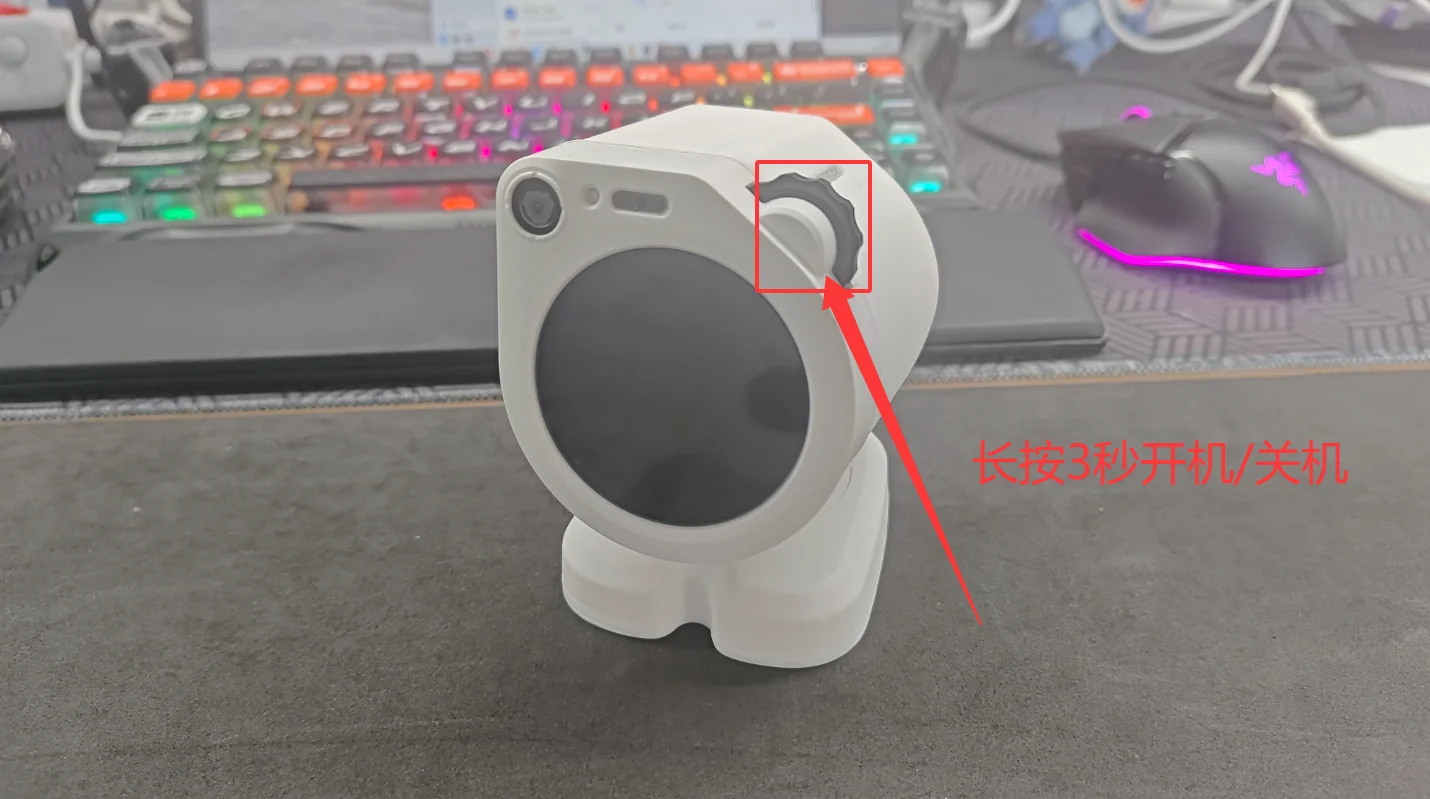
Press and hold the side dial for about 3 seconds to power the device on or off.
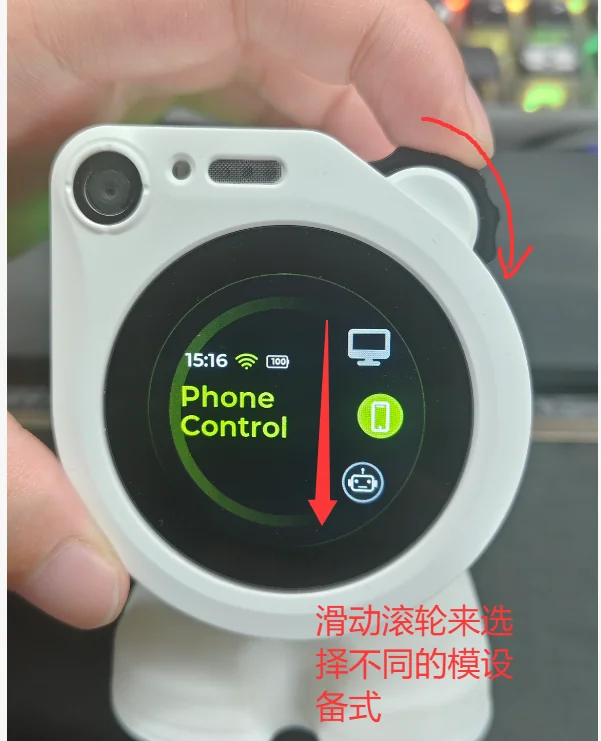
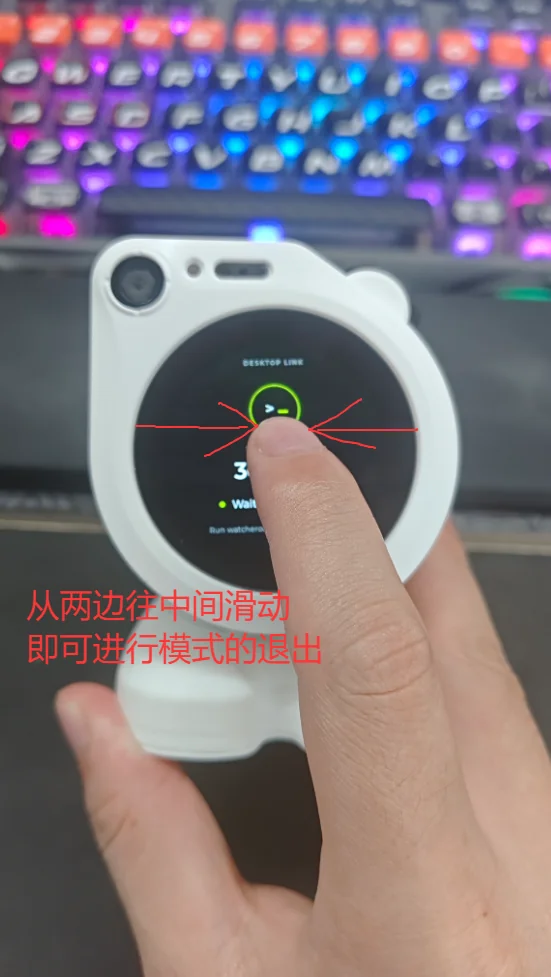
Scroll the dial to select a mode. Swipe inward from either edge of the screen to leave a mode.
Install a client
Download the phone app from the public repository Releases
Expand Assets in a release containing the phone app, download watcher-android-*.apk, and transfer it to your Android phone to install. Firmware-only releases do not include the app; look for an app or bundle release with an APK, not a firmware ZIP. For iOS, use TestFlight; availability is determined by TestFlight.
Download Watcher Desktop from Releases too: use the appropriate .exe installer for Windows or a .dmg matching your Mac's chip architecture. Availability follows the actual assets. APKs, firmware ZIPs, and SDK wheels are not desktop installers.
Configure Wi-Fi with a QR code
1. Display the QR code on the robot
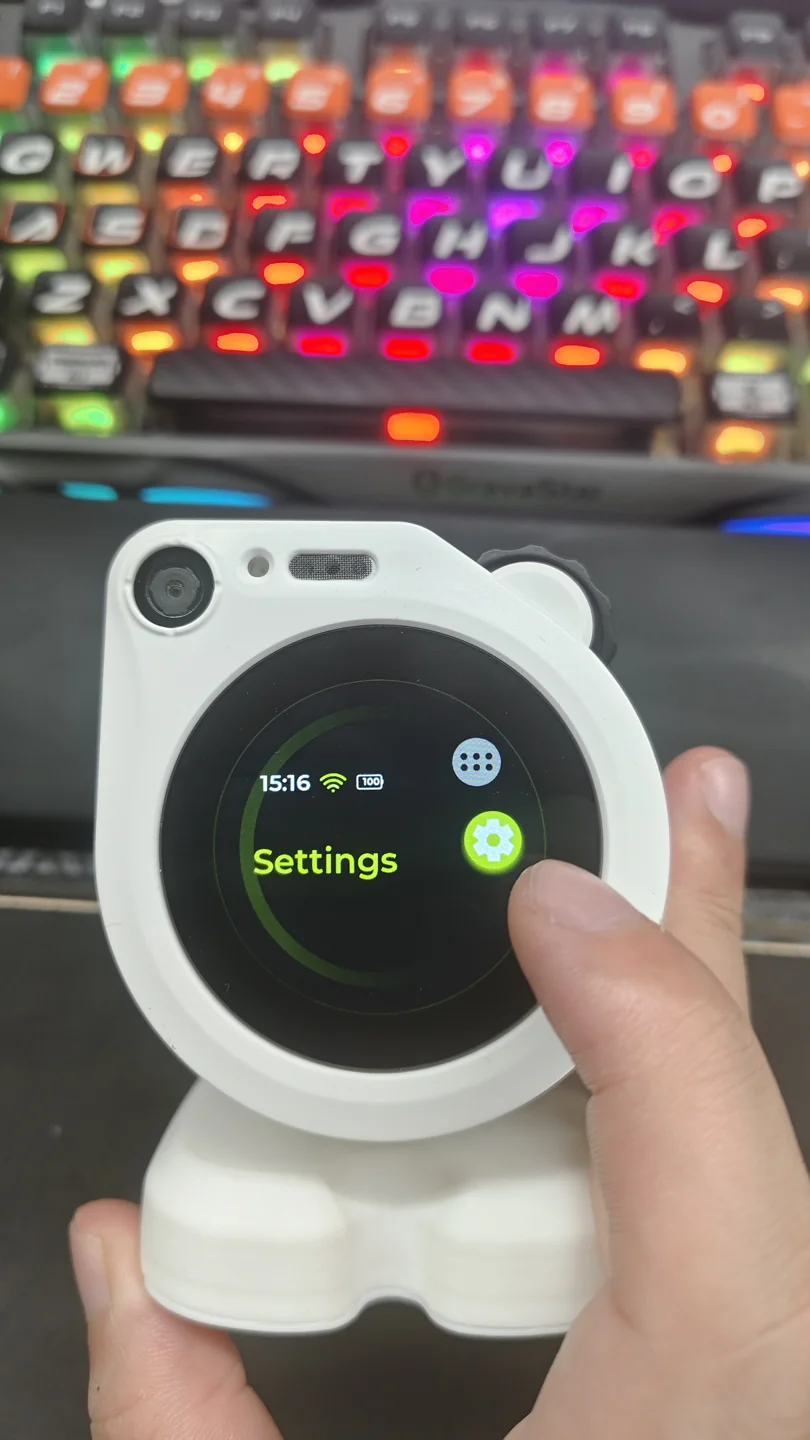
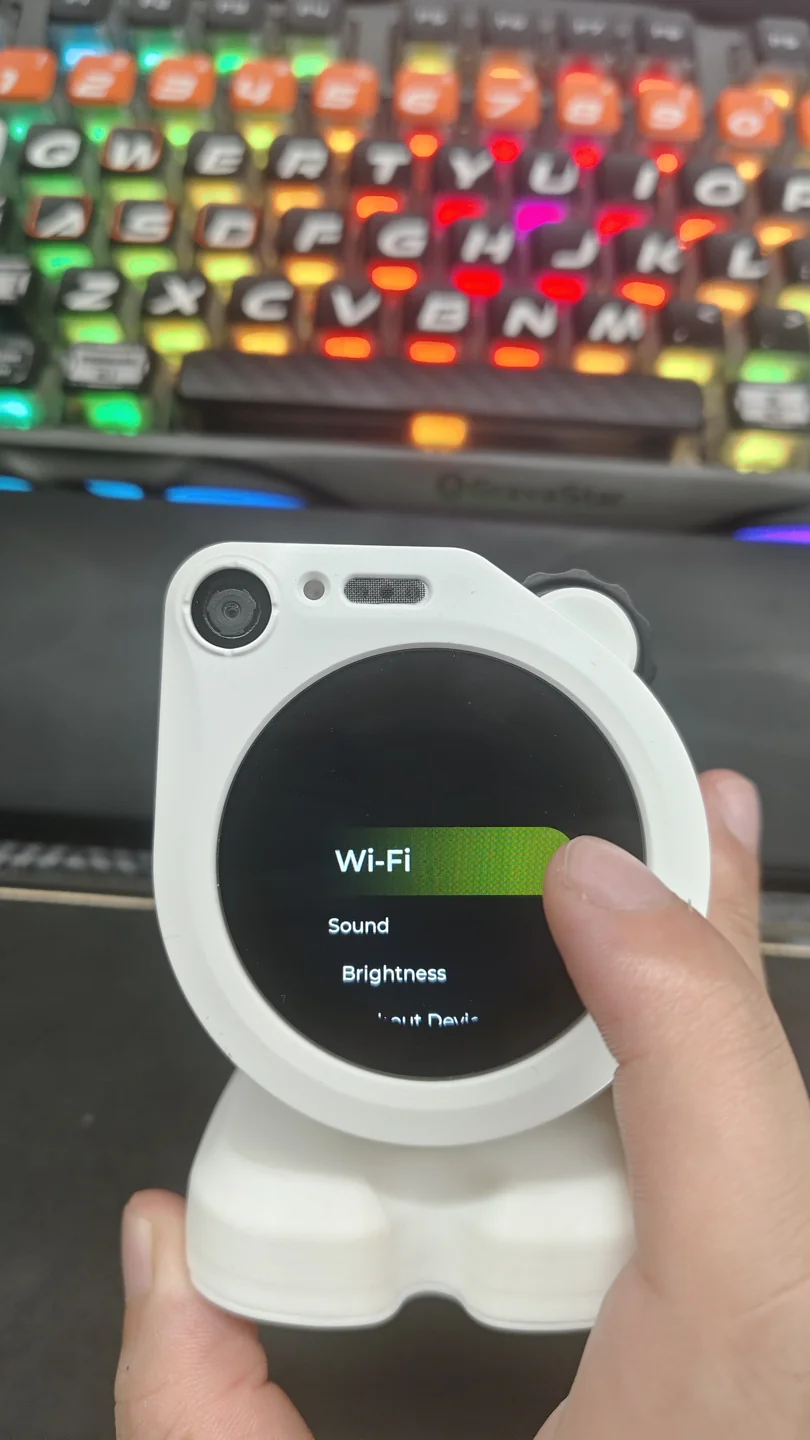
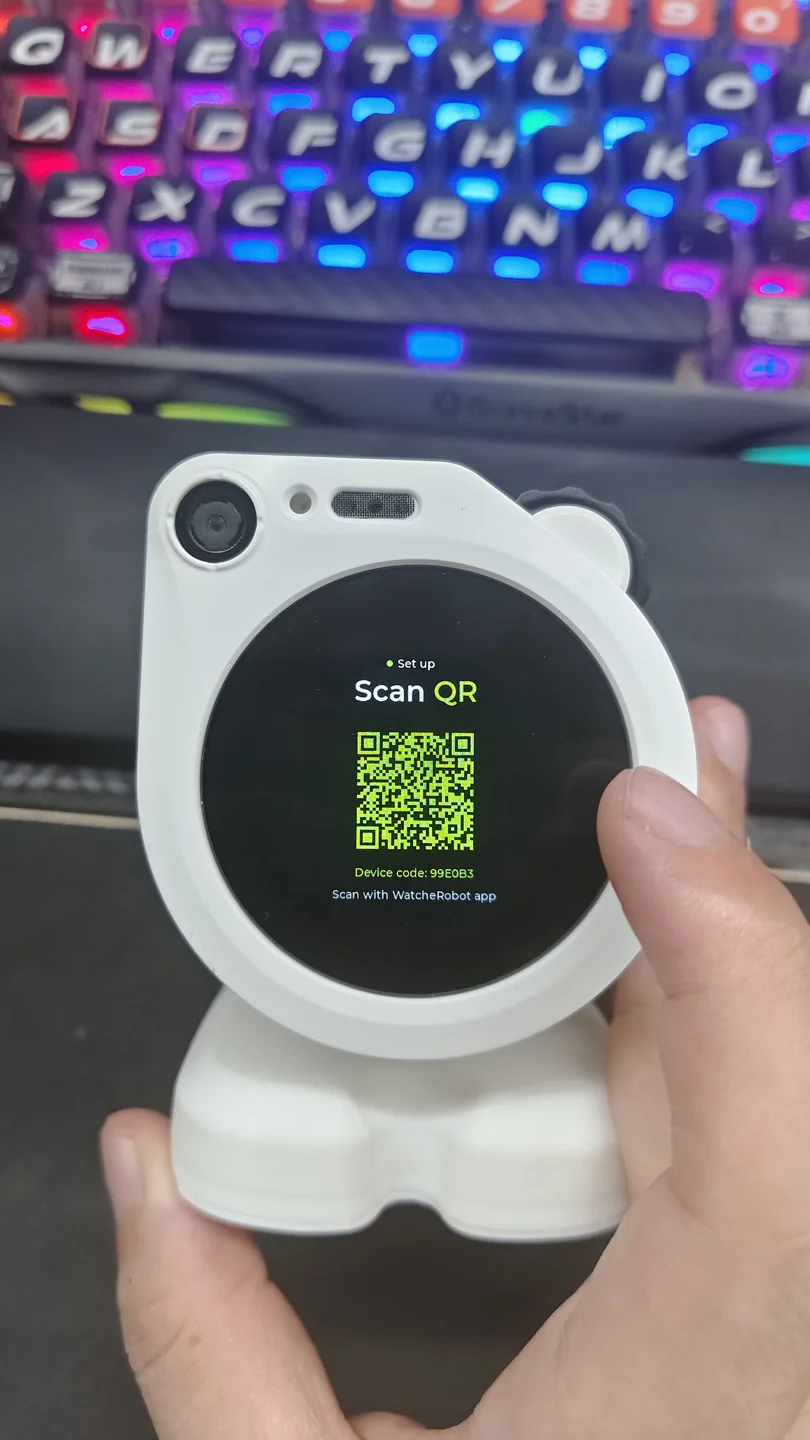
On first boot without saved Wi-Fi credentials, the robot opens provisioning automatically. You can also open Settings → Wi-Fi. Wait for Bluetooth advertising to be ready before scanning Scan QR.
Enable phone Bluetooth and grant the app Bluetooth and camera permissions. Scan inside the WatcheRobot app, not WeChat or the system camera. The code identifies the robot and does not contain your Wi-Fi password. A connected robot shows network details instead. Use Disconnect only to change networks: it clears the saved Wi-Fi credentials.
2. Scan with the phone app
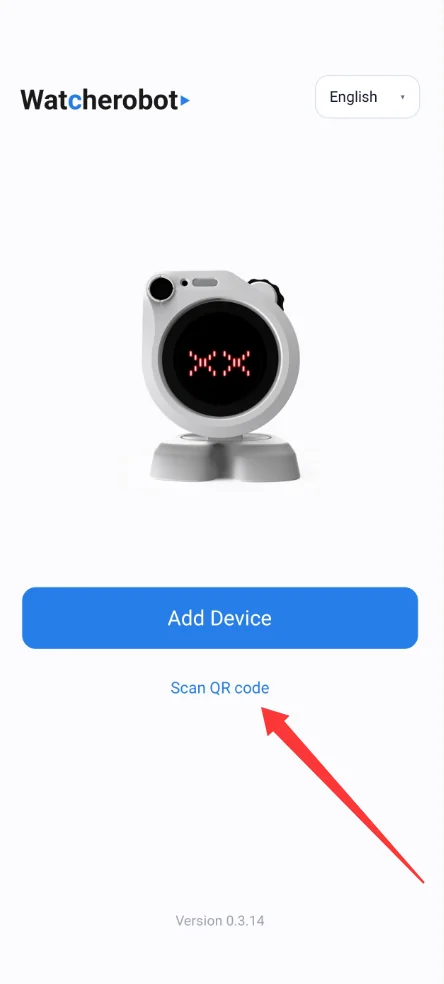
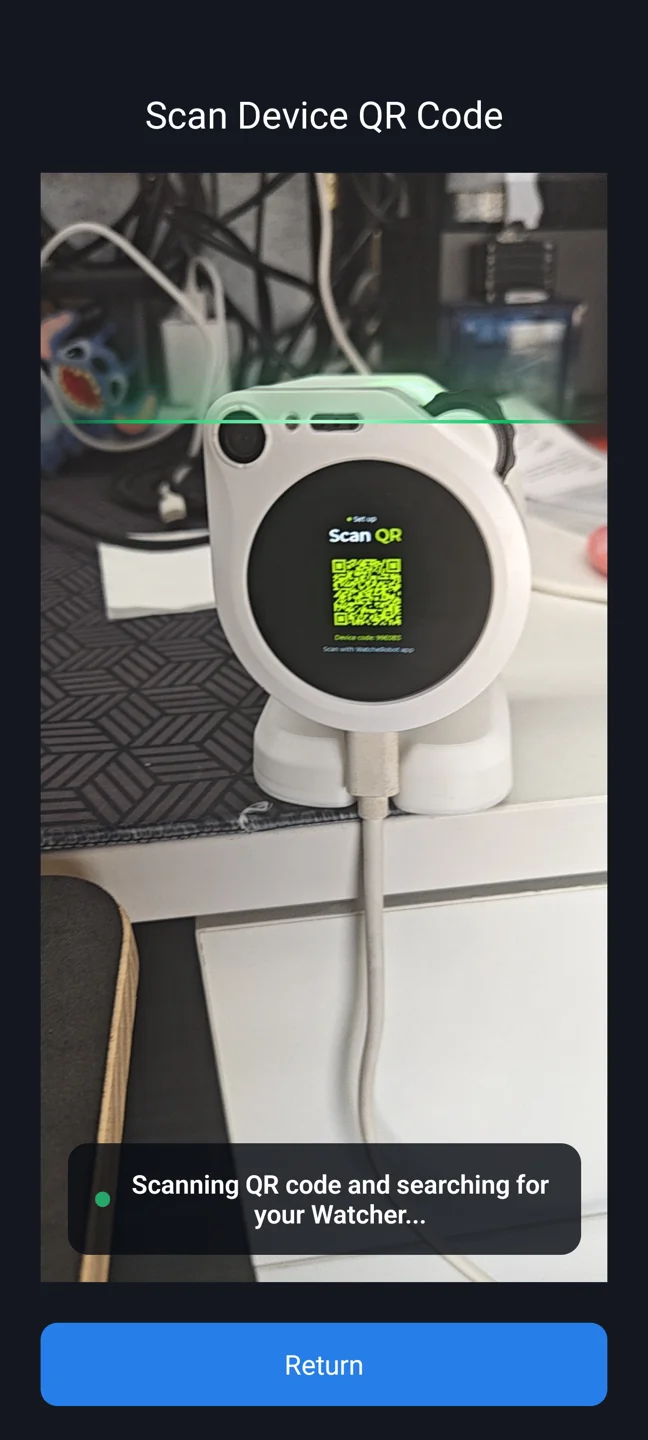
Open the app, tap Scan QR code, and scan the code on the robot's screen. Wait while the app searches for the device.
3. Select a network and connect
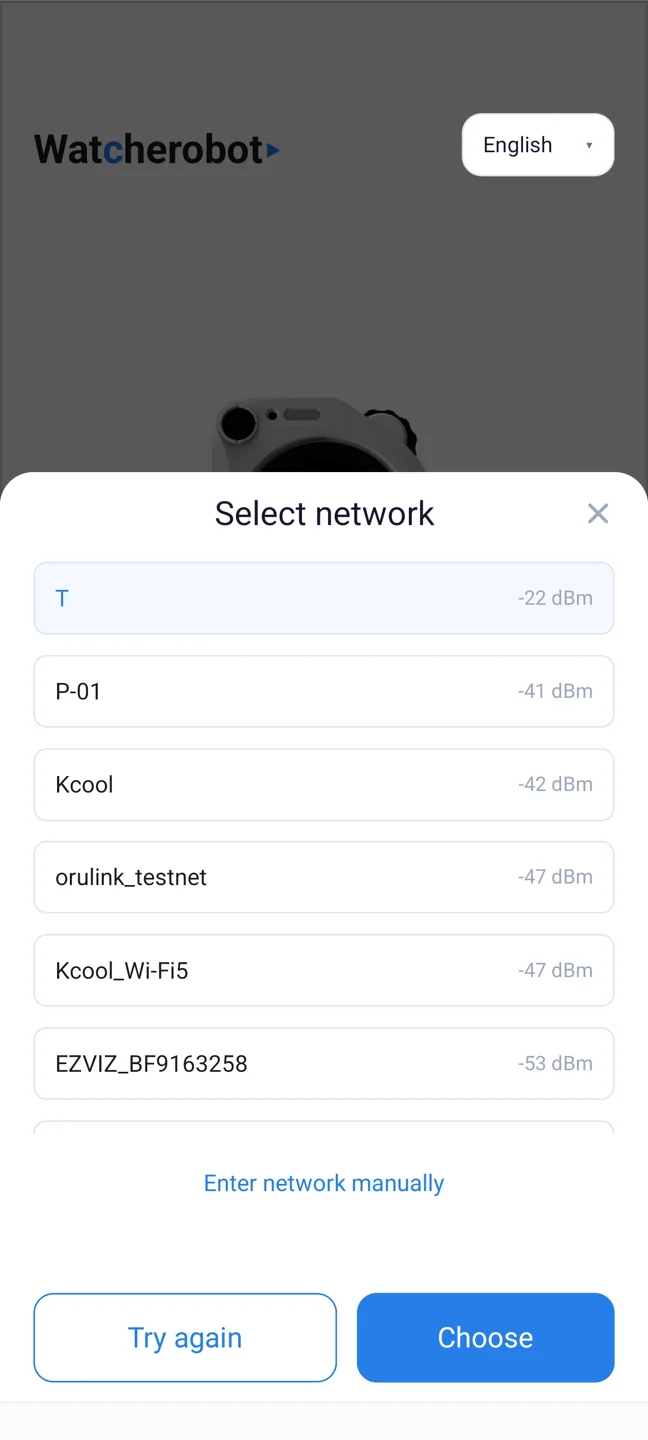
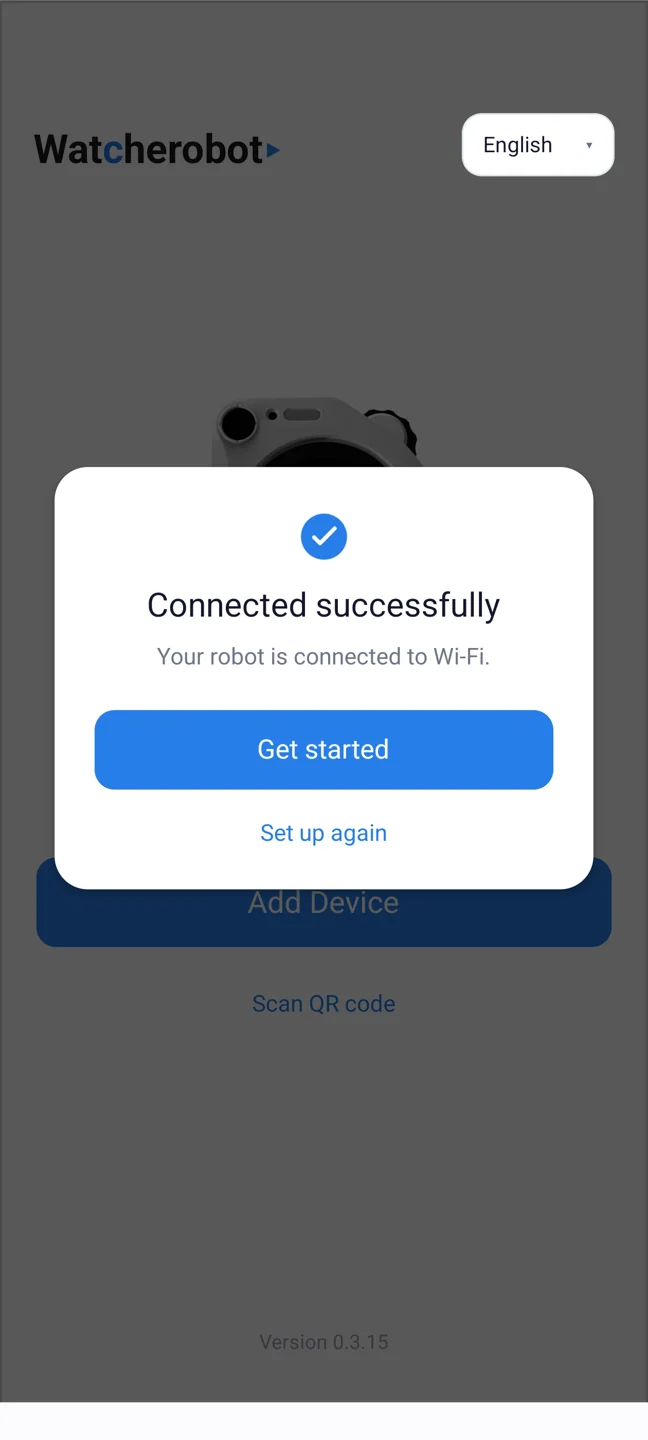
Select your Wi-Fi network, or tap Enter network manually to enter its name. Enter the Wi-Fi password and wait for Connected successfully. Confirm Connected and an IP address on the robot. A wrong password or timeout is not success; follow the app error to retry.
Provisioning is separate from phone control. After success notification and Bluetooth release by the app, the robot can return home; a manually opened Wi-Fi information page may stay open.
TIP
Do not provision again if the robot is already on the correct Wi-Fi. Before connecting a computer, make sure it and the robot are on the same local network.
SDK provisioning is also available; see the local Python SDK quick start. Installing the SDK is not required for phone QR provisioning.
Connect a computer and SDK
- Connect the computer and robot to the same local network.
- Open Desktop Link on the robot.
- Read the six-digit PAIR CODE shown on screen.
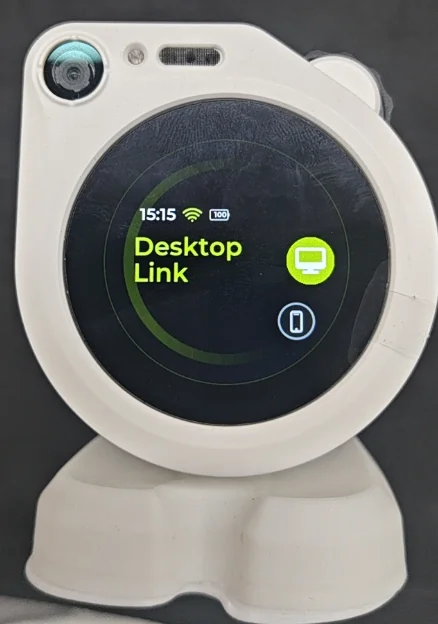
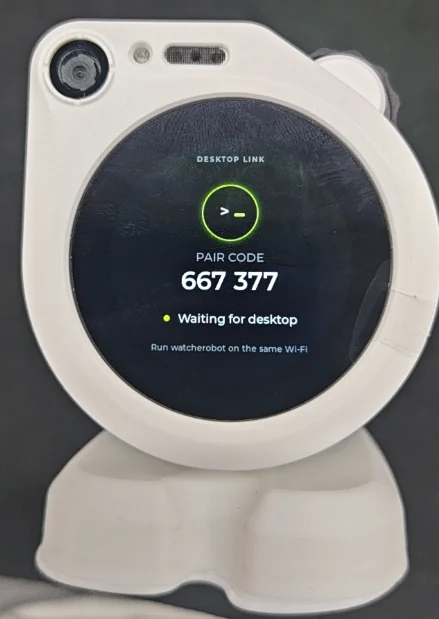
In Watcher Desktop, enter the code when prompted. For SDK access, first follow the Python SDK installation instructions, then run:
watcherobot robot pair 123456Replace 123456 with the robot's current code, not the example in the screenshot. Run watcherobot robot status to confirm the device is connected; saved pairing alone does not mean it is online.
See Client and device for connection states.
Connect a phone
- Open Phone Control on the robot.
- Read the Device ID on its screen.
- Open the phone app, tap Add Device, select the matching Device ID, and follow the app prompts.
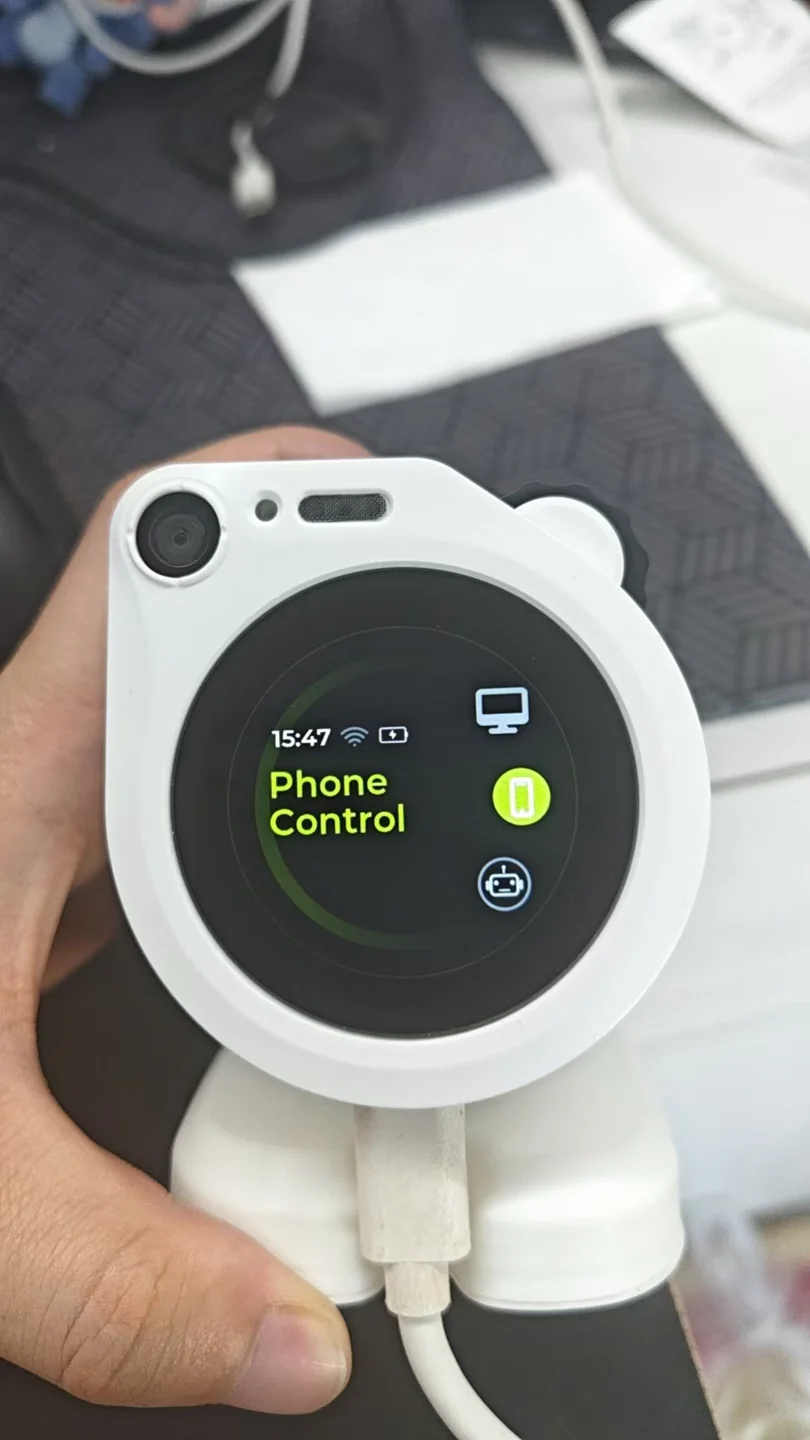
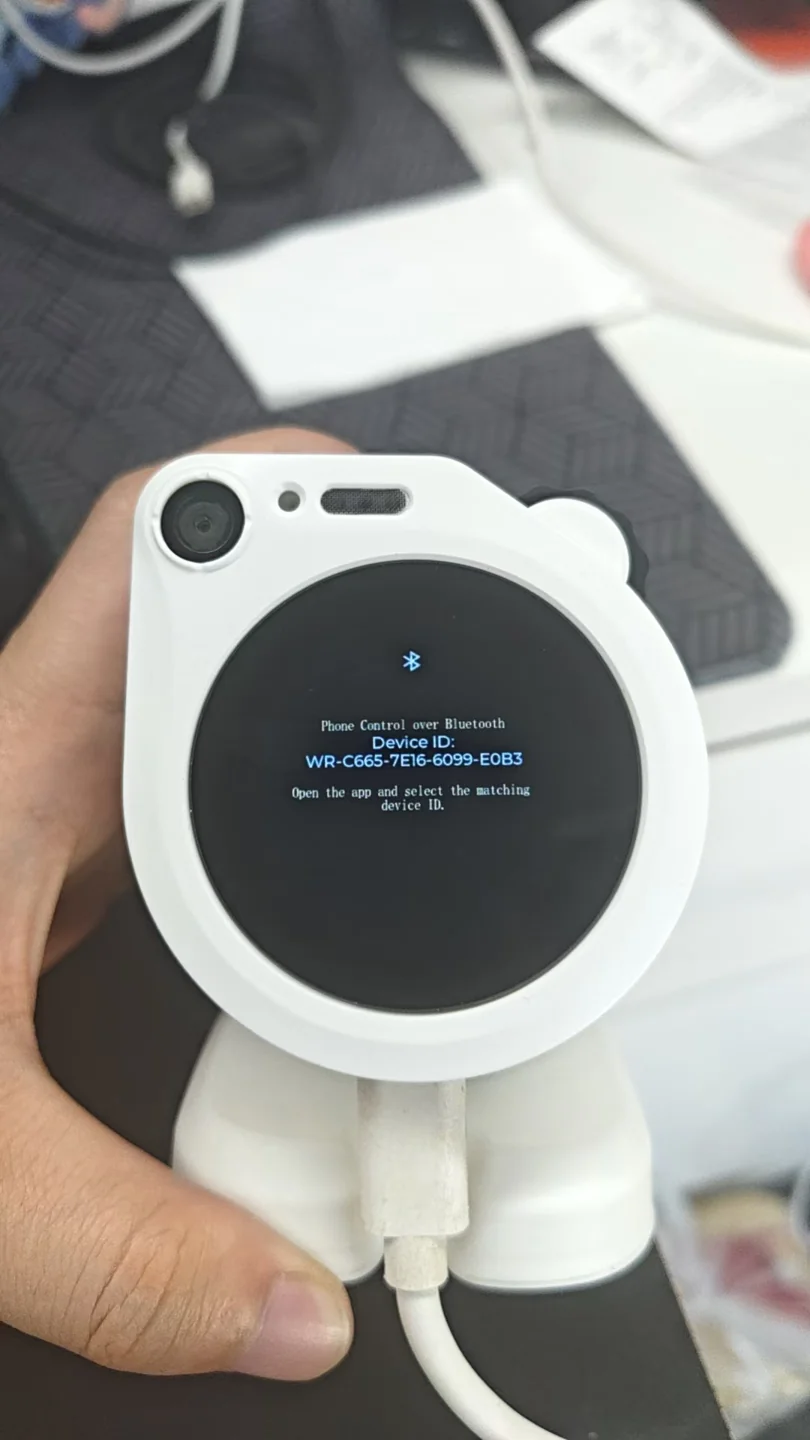
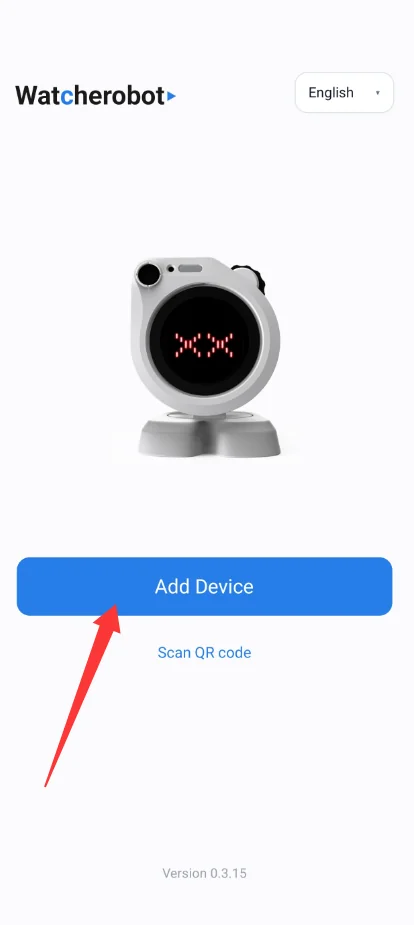
Scan QR code configures Wi-Fi; Add Device connects phone control mode. They are different actions.
For connection problems, see Troubleshooting.
Need a firmware update? Read the flashing guide. Join our WeChat community to discuss usage and development.