English | 简体中文
Flashing and First Use
See parts and assembly. An already-working robot does not need reflashing to configure Wi-Fi; start with the device guide.
| Scenario | Method |
|---|---|
| Compatible firmware already installed; update ESP32-S3 only | Web flashing; check Release compatibility first |
| DIY build, complete head recovery, or full paired installation | Full flashing: STM32, Himax, ESP32-S3, and SD resources |
| AI-assisted execution | Release flashing Skill |
Flash ESP32-S3 in a browser
- Open the ORULINK flasher in desktop Chrome/Edge. Connect the head's data USB port with a data cable. Close Desktop and serial monitors that may occupy the port.
- Select a device port and wait for ESP32-S3 verification. SERIAL-B / CH342 B is ESP32; SERIAL-A / CH342 A is Himax. If both appear as USB Dual_Serial, do not infer identity from COM number order. Disconnect before trying another port after failure.
- Select official firmware, check its version, and start flashing. For local firmware, choose a complete merged ESP32-S3
.binintended for address0x0, not a ZIP or application-only binary. - Keep power and data connected until an explicit success result and restart. If it does not boot, press RESET only after writing finishes; do not unplug merely because progress reaches 100%.
- Perform the first-run check.
The web tool writes ESP32 only, not STM32, Himax, or SD resources; it cannot replace a first full installation. Official packages overwrite their target partitions, and full-chip erase clears other device data too. Back up needed content first. Initialization failure alone does not prove firmware incompatibility: check port ownership, cable, drivers, and permissions.
Full Flashing: STM32, Head Firmware, and SD Resources
1. Prepare Materials, Files, and Environment
Have the STM32 body board, Watcher head, ST-LINK V2, USB data cable, SD card, and card reader ready. Disconnect power before changing wiring or inserting/removing the SD card.
First download or clone this repository: the tools/ commands below belong to it, not the firmware archive. Download and extract matching assets from Releases; use release compatibility notes rather than version-number comparisons alone:
| Asset name contains | Purpose |
|---|---|
| STM32 | Body board firmware |
| PTL-paired | Complete head Himax and ESP32-S3 firmware and paired tools |
| sd-resources | SD-card resources; the writer can also download the latest package |
Use Conda, or install Miniconda first. Open a Conda-enabled terminal at the repository root (Anaconda PowerShell Prompt on Windows). Create the dedicated environment once:
conda create -n watcherobot python=3.12 pip -y
conda activate watcherobot
Run the following commands at the repository root, replacing firmware paths with the extracted folders. The script prepares dependencies and flashing tools; initial setup requires internet access.
2. Flash the STM32 Body Board
Connect ST-LINK V2 to the four-pin connector on the board inside the body. Follow the labels, not wire colors.
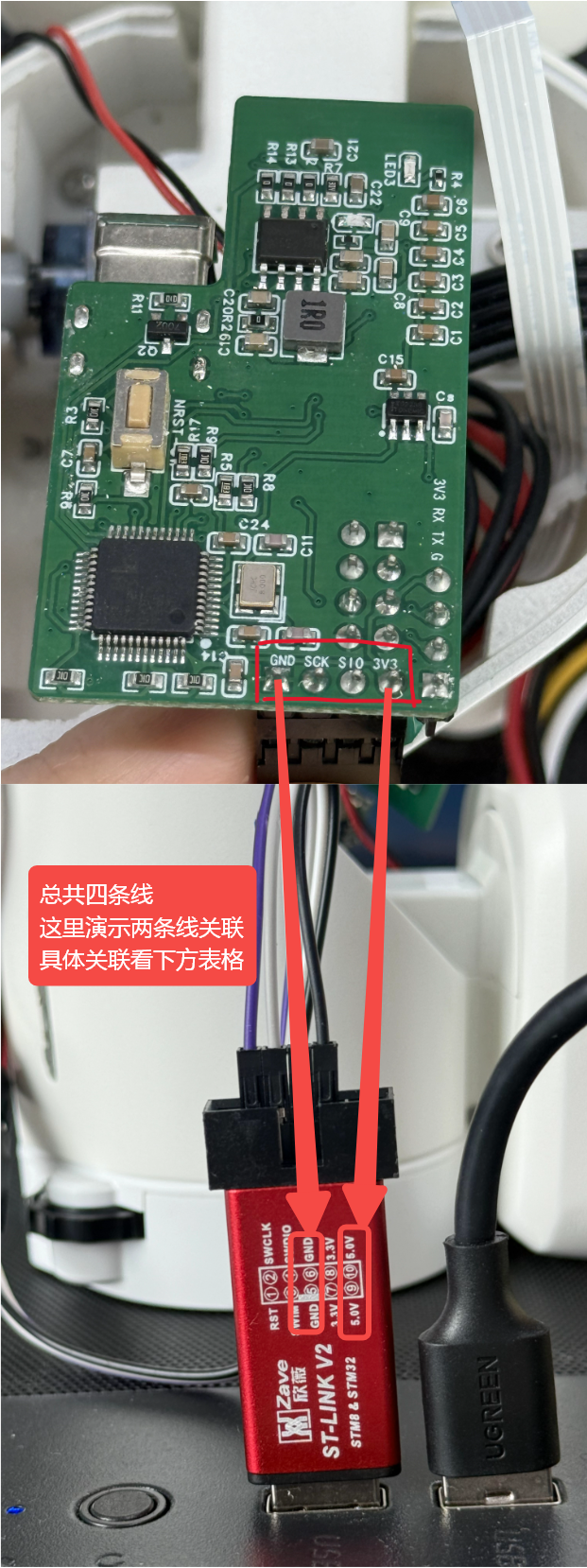
| Body board | ST-LINK V2 |
|---|---|
| SIO | SWDIO |
| SCK | SWCLK |
| GND | GND |
| 3V3 | 3.3V, subject to the actual power arrangement |
Never connect 5V to 3V3. Do not parallel the ST-LINK 3.3V power output with an externally powered board. Check wiring and power, then connect ST-LINK to the computer.
Windows:
powershell -NoProfile -ExecutionPolicy Bypass -File tools/flash.ps1 stm32 --package "extracted-STM32-folder"macOS/Linux:
bash tools/flash.sh stm32 --package "extracted-STM32-folder"Wait for Programming Finished, Verified OK, and Resetting Target with successful completion. Disconnect power and remove ST-LINK before continuing. If the chip cannot be reached, disconnect power and check wiring at both ends.
3. Flash Head Himax and ESP32-S3
Connect the Watcher head with a USB data cable. First run this command to install dependencies and list ports; it does not write firmware:
Windows:
powershell -NoProfile -ExecutionPolicy Bypass -File tools/flash.ps1 head --package "extracted-PTL-paired-folder"macOS/Linux:
bash tools/flash.sh head --package "extracted-PTL-paired-folder"Identify the ports corresponding to SERIAL-B and SERIAL-A in the output. On Windows, the desc: names map to these arguments; COM61 and COM62 are examples:
| Device name | Port (example) | Command argument |
|---|---|---|
| USB-Enhanced-SERIAL-B CH342 (ESP32) | COM61 | --port COM61 |
| USB-Enhanced-SERIAL-A CH342 (Himax) | COM62 | --vision-port COM62 |
You can also run a read-only query; neither command writes firmware:
# Windows
Get-PnpDevice -PresentOnly -Class Ports | Where-Object { $_.FriendlyName -match 'SERIAL-[AB].*CH342' } | Select-Object FriendlyName# Windows/macOS/Linux, after the tool-preparation command above
python -m serial.tools.list_ports -vAlternatively, open Windows Device Manager → Ports (COM & LPT) and read the COM number in parentheses after each name. Connect only one Watcher for flashing.
The script prints a concise Device name / Port / Command argument table. Use SERIAL-B for --port and SERIAL-A for --vision-port. Replace both port numbers below with the reported values for the initial full flash:
powershell -NoProfile -ExecutionPolicy Bypass -File tools/flash.ps1 head --package "extracted-PTL-paired-folder" --port COM61 --vision-port COM62 --factoryFull macOS/Linux flashing command:
bash tools/flash.sh head --package "extracted-PTL-paired-folder" --port "/dev/SERIAL_B" --vision-port "/dev/SERIAL_A" --factory/dev/SERIAL_B and /dev/SERIAL_A are placeholders. Replace them with the identified ESP32 and Himax serial paths respectively; do not infer the mapping from port number order. Do not flash until the mapping is confirmed.
Use --factory for the initial installation of this complete head package so the ESP32 partition table, application, and storage all come from the same release. It overwrites existing ESP32 data and is not the data-preserving update path.
One command automatically checks the package and ports, flashes ESP32-S3, starts it and confirms Himax power initialization, flashes Himax, then restarts. No intermediate confirmation or separate flashing command is needed. After HX flash completed; reboot accepted., wait for PTL paired flash completed. and Head flash completed successfully to confirm writing and restart commands completed. Keep the cable connected. Failures identify the stage; check normal operation in step 5.
Stop if ports are missing or inaccessible: automatic CH342 driver installation and Linux serial permission setup are not yet supported.
4. Prepare the SD Card with a Card Reader
Follow the SD-card Resources guide to prepare the format and write resources. Return the card to the head, then continue to the power-on step below.
5. Power On and Use
Check the SD card and wiring, then power on. Follow the device guide: Desktop Link for computer/SDK access, Phone Control for phone control. Allow initialization to complete.
A BLE connection only proves the phone link; it does not prove STM32, servos, camera, or speaker operation. Check their physical results separately.
Download Desktop or Android installers from the Release; use its TestFlight link for iOS. Python users can follow the SDK Guide.
After connecting, follow the First-run Check with an expression, a light effect, and a movement within a safe range.
Use the Skill (Optional)
Open this repository in an AI coding assistant and ask:
Read skills/watche-release-flash/SKILL.md, use the dedicated Conda environment, confirm the firmware folder and connected target, then flash and report the actual result.
Without an AI assistant, simply use the commands above.